Table of Contents
Updated on 2026-09-04
1 - Introduction
I learned the importance of logging package activity when I began using Debian Unstable . Because you can encounter breakage or a problematic package(s) when performing package upgrades under Debian Unstable, logging package activity can prove to be useful for troubleshooting purposes. Logging package activity can be also be useful for reference and historical purposes. In this post I will share how I log package activity, specifically upgrades, for Debian and Solus , the Linux distros I currently use as my daily operating systems. While not covered in this post, I also use the same technique to record manual installs and removals; i.e. I initiate the installs and removals.
When I first began logging package activity, I saved package activity in text files whose filenames included the date, distribution name, and the computer model. Including the computer model is useful if you use more than one computer. Whenever I needed to search for a particular package, I would use grep from the command line to query the package activity text files that I stored under a separate folder or directory. Using grep to query packages in the package activity text files worked, but scanning the results could be cumbersome at times if there was a lot of upgrade activity for a particular package.
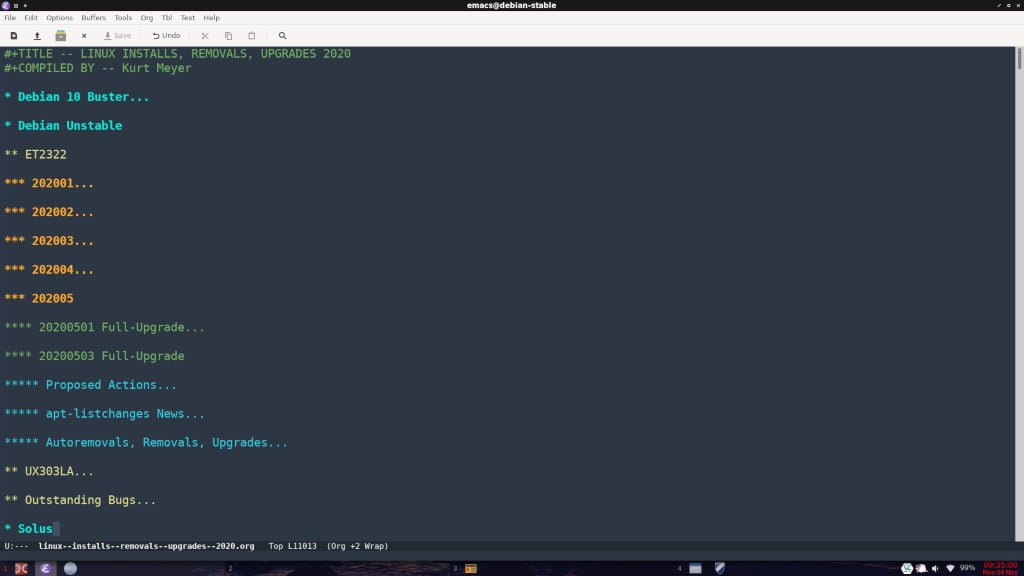
I have used Treepad for a number of years to keep various tip and information databases and it dawned on me about two years ago that I could use Treepad to store package activity. About one year ago, I began using Emacs and Emacs Org mode as a replacement for Treepad. I currently log all Linux package activity in Emacs Org mode (.org) files, using the filename linux–installs–removals–upgrades_yyyy.org, where yyyy is the current calendar year.
There are a number of references in this tutorial about copying information from the command line. Copying from the command line under Linux is accomplished by selecting the text you wish to copy and then simultaneously pressing the SHIFT-CTRL-C keys on your keyboard.
2 - Logging Debian Package Activity
I check for package upgrades on both Debian Stable and Debian Unstable at least once when I boot up either one on my computers. From the command line, I query a Debian repository for package upgrades using the following command:
sudo apt update

You can use the command apt list --upgradable to generate a list of packages to upgrade, but I don’t like the output format of the command and the command only shows packages to be upgraded, not packages to be removed or packages that are no longer needed (autoremovals).
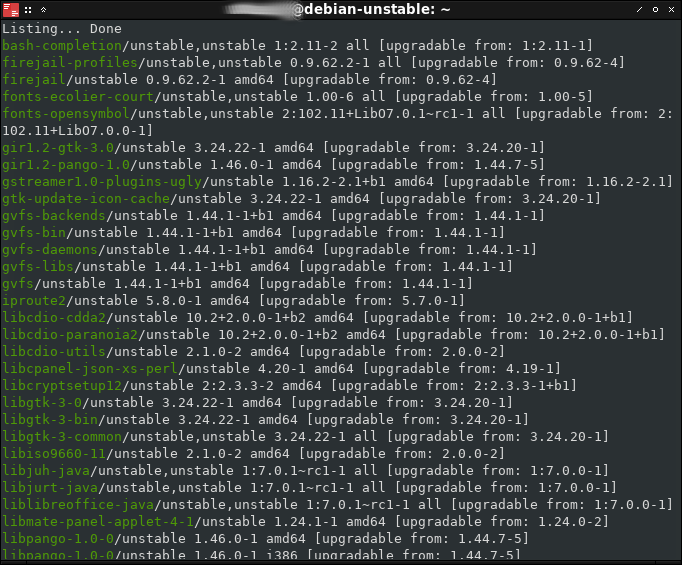
sudo apt full-upgrade
If upgrades are available, I run the following command from the command line to see the upgrades that are available:
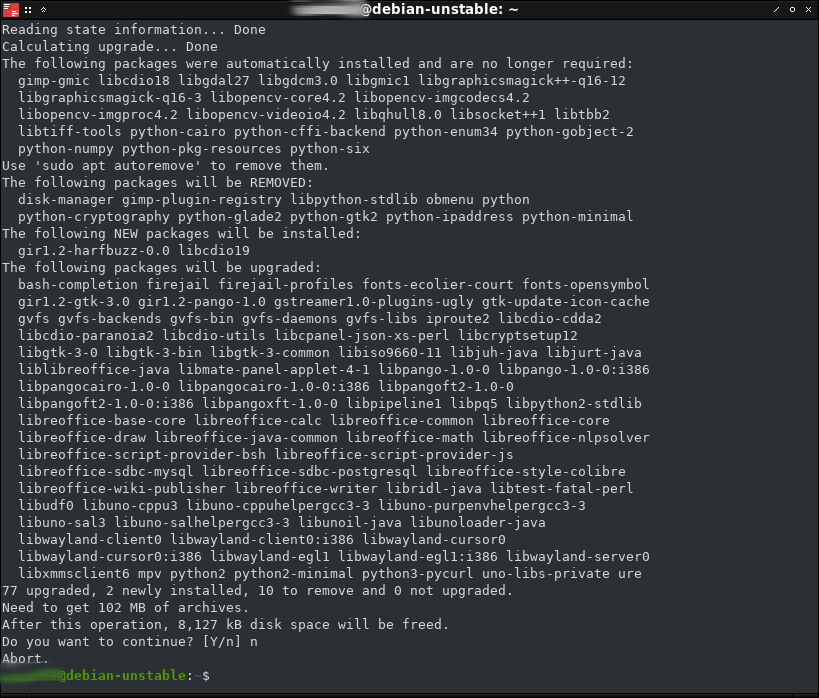
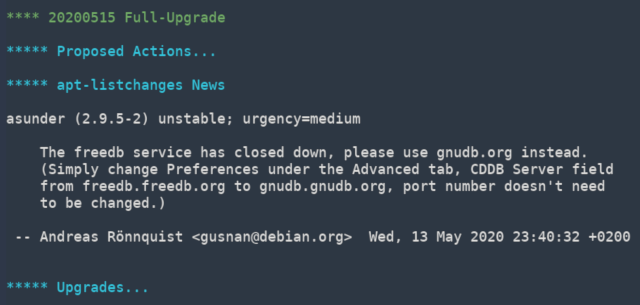
Next, I copy and paste the proposed actions into the linux–installs–removals–upgrades_yyyy.org file.
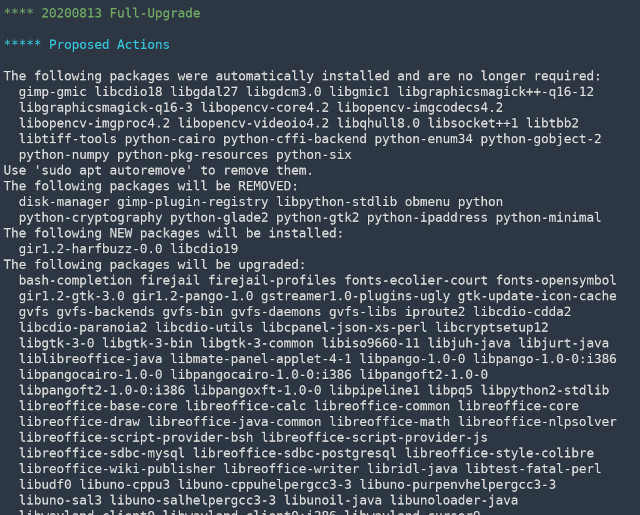
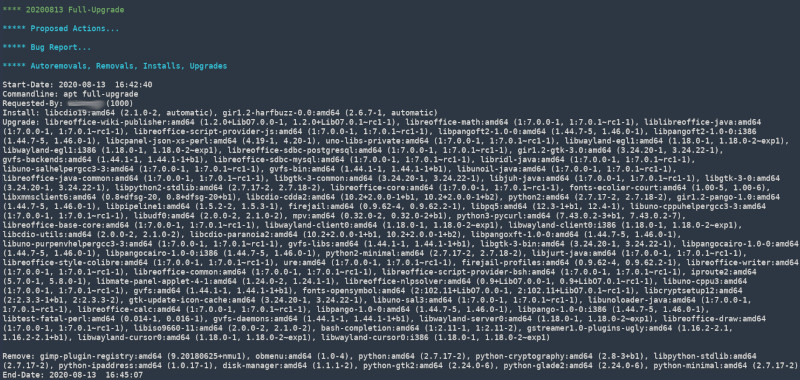
I then commence with the upgrade using the previous command. If there are bug reports, I copy and paste those to the linux–installs–removals–upgrades_yyyy.org file.
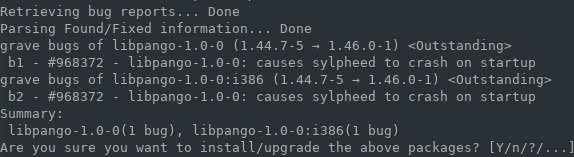
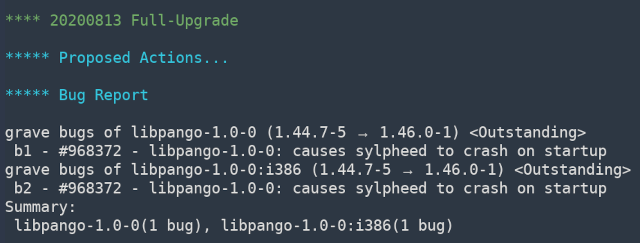
If there are dpkg errors or warnings during the upgrade process, I copy and paste those to the linux–installs–removals–upgrades_yyyy.org file.
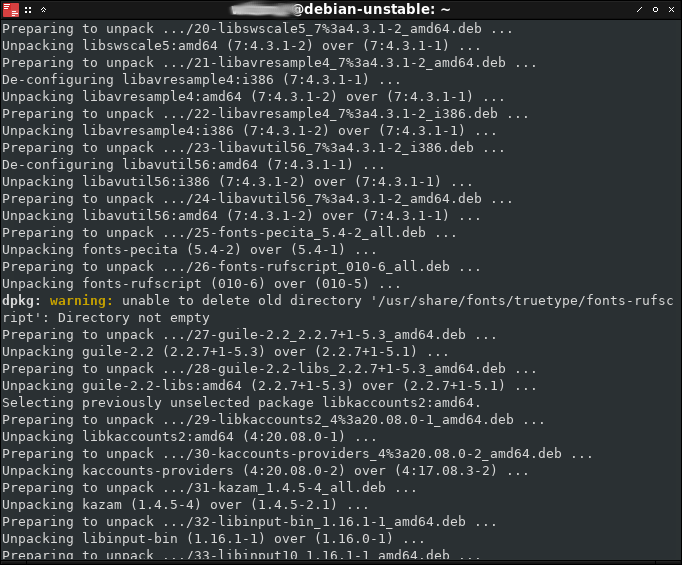
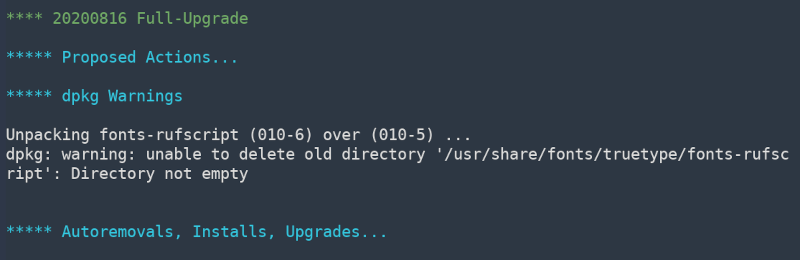
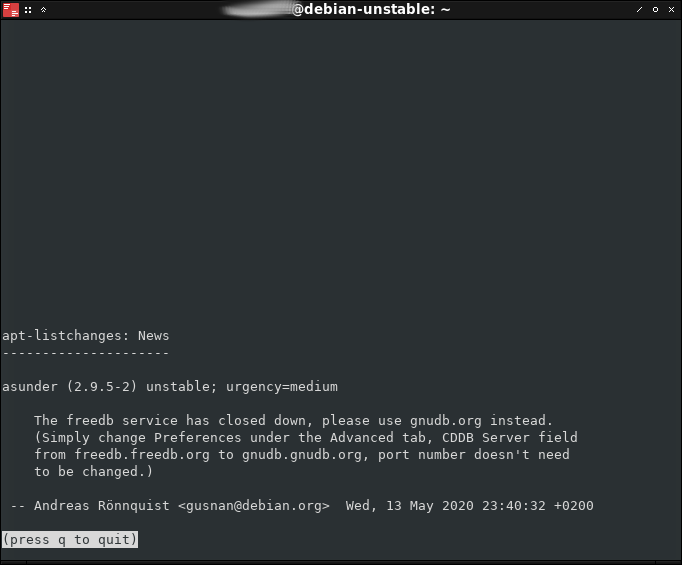
Sometimes aptlist-changes News reports are generated during an upgrade. If so, I record the news to the linux–installs–removals–upgrades_yyyy.org file.
Once the upgrade has been performed, including autoremovals if applicable, I record the results to the linux–installs–removals–upgrades_yyyy.org file, using the contents of the /var/log/apt/history.log file.
3 - Logging Solus Package Activity
Solus was generally only updated once a week when I used it, usually on Friday or Saturday. Therefore, I didn’t check for upgrades every time I booted up Solus on either of my computers. When I did check for upgrades, I used the following command from the command line to check the Solus repositories:
sudo eopkg up -n
The -n switch in the above command performed a dry run of the upgrade process. In other words, the upgrade was not actually performed. If there were packages to be upgraded, I copied and pasted the upgrade list into the linux–installs–removals–upgrades_yyyy.org file.
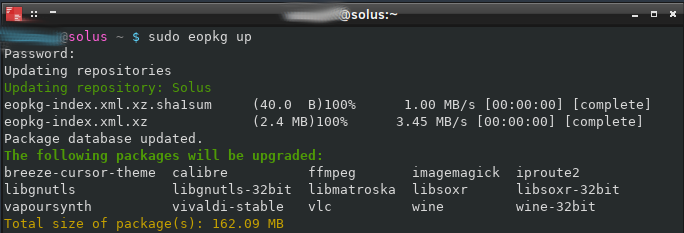
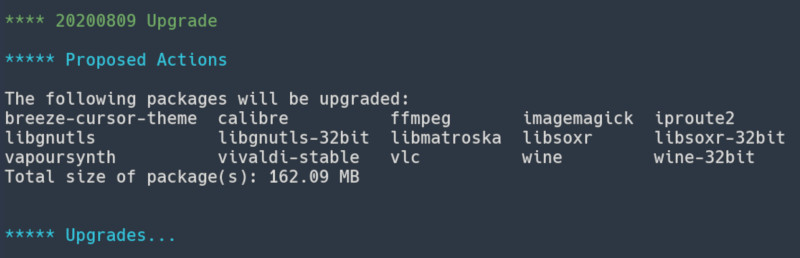
I then commenced to perform the actual upgrade if there were packages to be upgraded, using the following command on the command line:
sudo eopkg up
Package activity under Solus used to be accessible using the following command on the command line:
sudo eopkg history
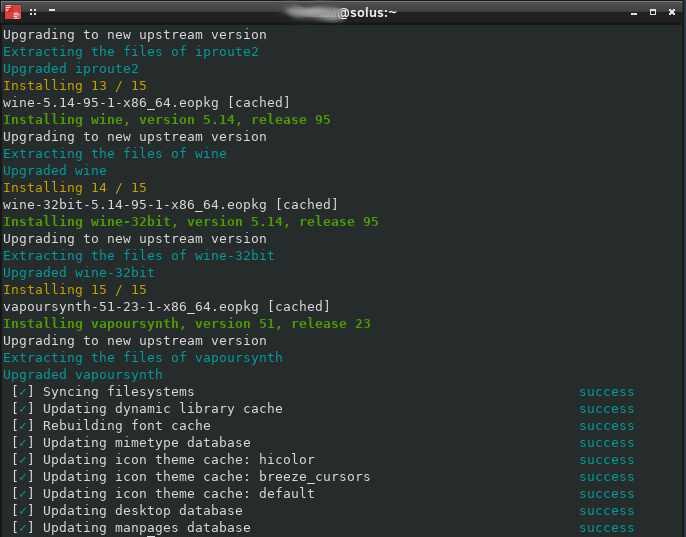
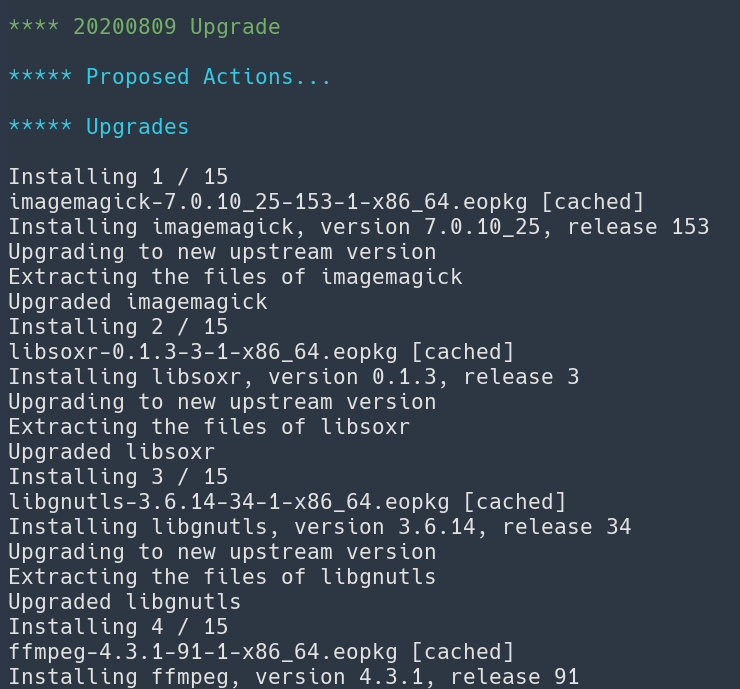
However, the output of the above command didn’t contain the information that is provided at the very end of the upgrade results. Therefore, once the upgrade process completed, I copied and pasted the Install lines to the end of the upgrade results into the linux–installs–removals–upgrades_yyyy.org file.
4 - Conclusion
I’ve documented how I log package activity for the Debian and Solus Linux distributions in this tutorial. However, the techniques I’ve outlined can be used for any Linux distribution. I hope this tutorial proves useful to you should you also decide to log package activity under your preferred Linux distribution.
2020-005